Desktop Snapshots
Using Desktop Snapshots
Snapshots give you the ability to 'back up' your virtual machine and restore it quickly whenever needed.
For instance, if you're about to perform an upgrade that could potentially disrupt your system, you can shut down your virtual machine and capture a snapshot in advance.
If the upgrade goes smoothly, the snapshot can be discarded; if anything goes wrong, you can simply revert the machine to its previous state.
Snapshots are available across all DaDesktop types – Fresh Start, Trainer, Participant, and Standalone machines can all take advantage of them.
Keep in mind that when you restore a snapshot, the machine will power down and be ready for you to restart.
Creating Snapshots
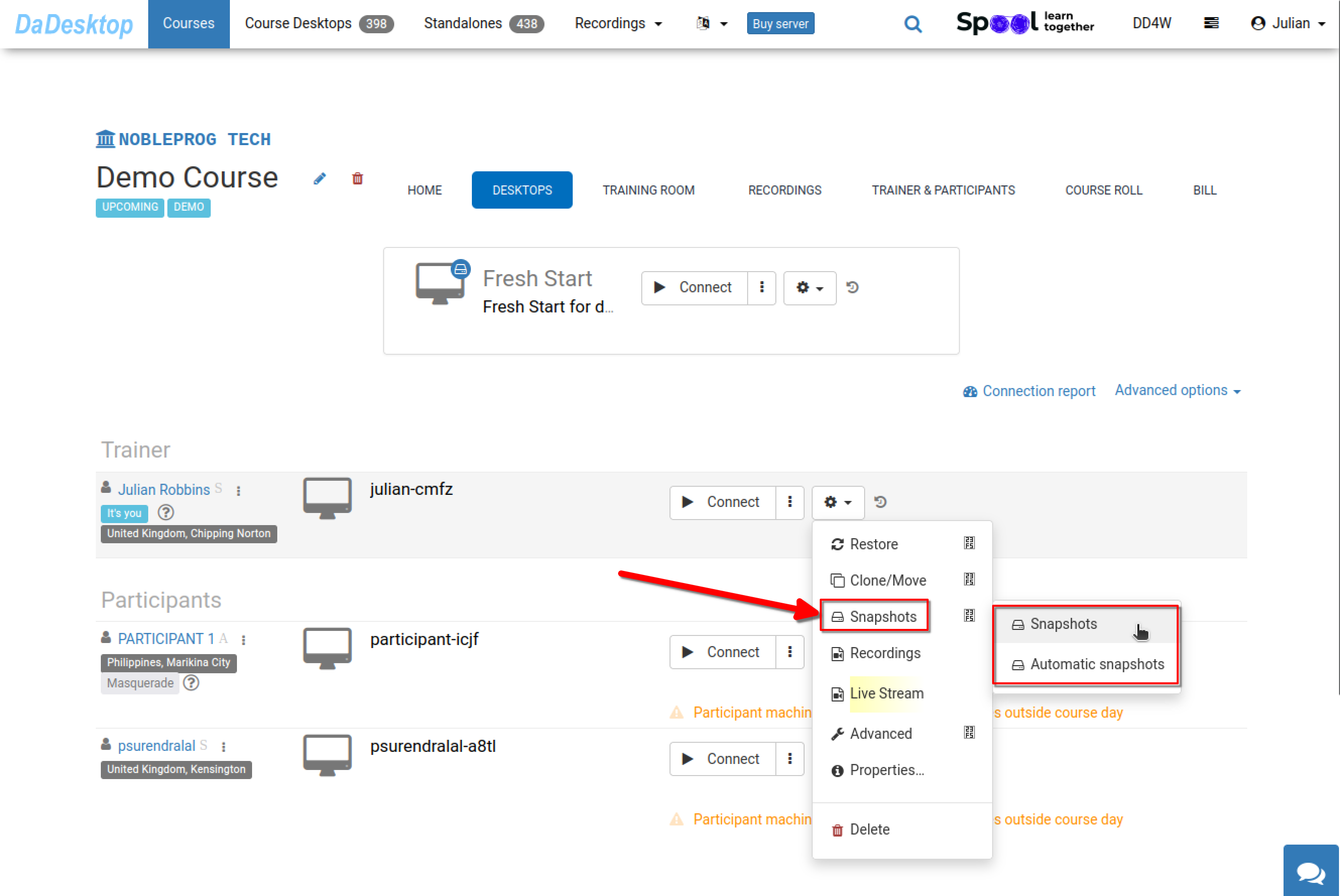
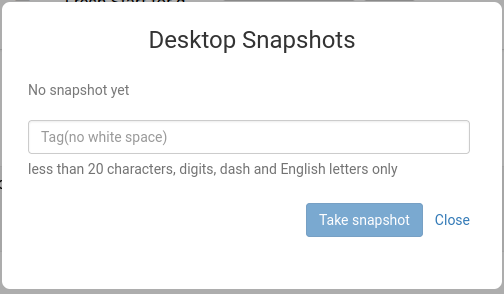
Here's how to capture a snapshot. Make sure to label it with a clear, descriptive name so you can easily recognize the point at which it was taken.
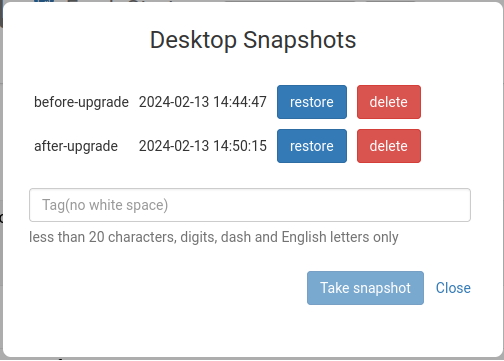
Below, you'll see two snapshots taken at different stages. You can restore or remove them whenever necessary.
Automatic Desktop Snapshots
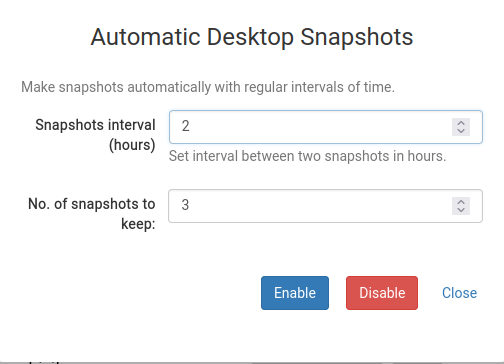
If you'd rather have snapshots created automatically on a regular schedule – so you never have to worry about forgetting – the Automatic Desktop Snapshots feature is the perfect solution.
You can set both how many snapshots to keep and the interval at which new ones are captured right here.